To automatically label receipts in Gmail, create a Receipts label, test a sender-and-subject search, and turn that search into a filter that applies the label. Start with one vendor so you can see which messages match before expanding the rule. You can keep receipts in the Inbox while adding the label.
This Gmail filters tutorial uses the computer browser interface and built-in features. You need access to the mailbox and a genuine receipt to inspect. No extension, paid automation, or AI service is required.
Choose exactly which receipts the Gmail filters should match
Open a receipt and copy its actual sender address. Check the wording used in its subject. For a vendor that uses receipt in the subject, try this query in Gmail’s search box, replacing the fictional example address:
from:billing@example.com subject:receiptInspect the results before saving anything. Find at least one receipt you expected to match and one unrelated message from the same vendor that should be excluded. Gmail’s from: and subject: operators narrow the search, but they do not verify that a message is a genuine purchase record.
If the vendor uses both receipt and invoice, test this variant separately:
from:billing@example.com {subject:receipt subject:invoice}The braces express alternatives. Leave out has:attachment unless you only want mail with an attachment; many receipts are in the message body. A time range can help inspect old examples, but a fixed end date should not accidentally become part of a rule meant for future mail.
- Identify one real receipt and its sender.
- Search, then review matches and exclusions.
- Create a label-only filter.
- Check a new matching message and revise the rule if needed.
Create the Receipts label and save the rule
- In Gmail on a computer, find Labels in the left sidebar and select Create new label. Enter Receipts and create it.
- Open Show search options beside the search box. Enter the sender in From and the word receipt in Subject. Use Search to inspect the matching messages.
- Return to the search options and choose Create filter. Select Apply the label and choose Receipts.
- Keep deletion, forwarding, and Skip the Inbox unselected for the first version. Create the filter.
This setup adds a label while keeping the message available in its existing mailbox locations. Labels organize messages; they are not a separate backup. Google documents the controls in its filter instructions and label guide.
If you separately save invoices or receipt attachments in Google Drive, review those files’ permissions with the Drive sharing audit. A Gmail label neither backs up the document nor checks who can open a separately shared Drive copy.
Label older receipts after checking the search
A future-mail rule and organizing existing mail are separate checks. To handle old receipts explicitly, run the tested search, select a small group of genuine matches, and use the Labels control to apply Receipts. Inspect the result before selecting a larger batch.
For the rule itself, check the next matching message that arrives. A label on an old message does not prove that your new filter matched a later message.
A test worksheet for your own mailbox
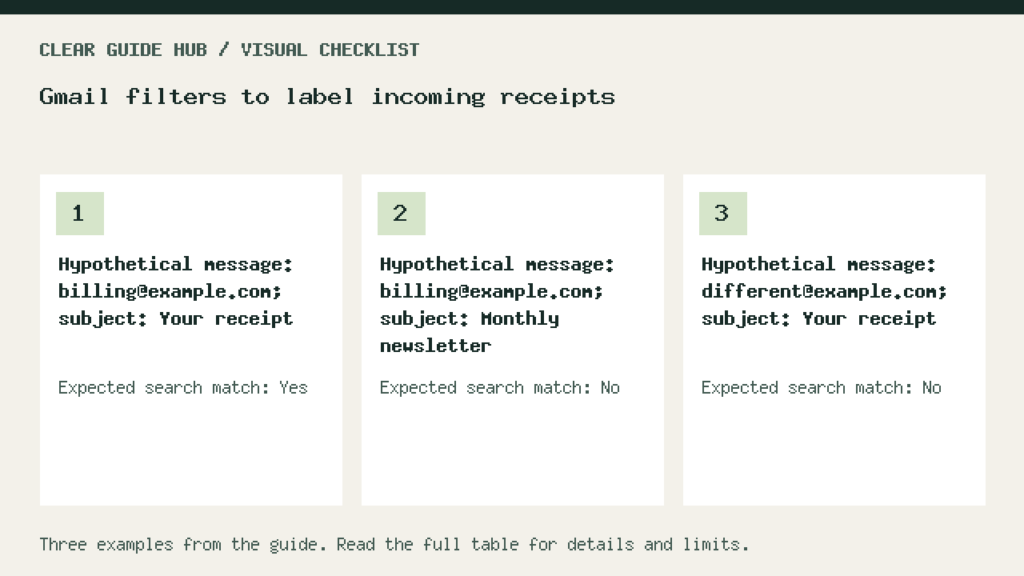
The following cases use a fictional sender; they are expected matches for the sample query, not results from a Gmail account. Replace them with observed examples in your mailbox.
| Message | Expected match | Inspect |
|---|---|---|
| billing@example.com — Your receipt | Yes | Check the individual receipt message. |
| billing@example.com — Monthly newsletter | No | Confirm an unrelated message is excluded. |
| other@example.com — Your receipt | No | The sender condition excludes this address. |
| billing@example.com — Your receipt, no attachment | Yes | The rule does not require an attachment. |
| billing@example.com — Your invoice | No for the first query | Use the tested alternative query if invoices belong here too. |
Fix a rule that misses receipts or catches too much
- A receipt is missing: compare its actual sender and subject with the search. A vendor may use multiple billing addresses or different wording.
- Newsletters get labeled: make the sender or subject criteria narrower and re-run the search before changing the filter.
- A reply is not labeled: the reply must itself meet the criteria; belonging to a matching conversation does not ensure that it matches.
- The conversation view looks confusing: inspect individual messages. A displayed conversation can include messages with different labels.
- You need to edit the rule: open Settings > See all settings > Filters and Blocked Addresses, locate it, choose Edit, and confirm Update filter.
Expand only after the first rule works
Add a second vendor with its own tested rule before attempting a broad receipt detector. Keep a short note of the sender, subject terms, label, and last checked example. Export the relevant filter from Filters and Blocked Addresses if you want an XML copy before a larger revision.
A subject rule cannot classify every invoice correctly, validate an expense, or turn an email into a bookkeeping entry. For a separate workflow that transfers selected messages to a spreadsheet, see our Gmail-to-Sheets automation guide. If that automation needs failure monitoring, use an n8n error workflow.