
To create an Excel task status dropdown, give the Status cells a list rule, enable the dropdown arrow and use a Stop error alert for invalid typed entries. This example uses four statuses and an exact cell range, so you can check the result before applying it to a working tracker.
Start with a free task tracker
Download the Excel task status starter (.xlsx) or download the sample rows (.csv). The workbook includes a list rule on Tasks!B2:B50 and fictional tasks; the CSV contains only the rows and does not preserve dropdowns or formatting. The workbook uses the same four statuses as this guide, stored as a short inline list. The manual instructions below use a named helper range instead.
Scope: The manual path uses Excel for Windows, including Microsoft 365 and recent desktop releases. Mac and web labels can differ; use Microsoft’s platform tabs in Create a drop-down list. Work in a new workbook or an editable copy approved by its owner.
1. Put the sample task data in the right cells
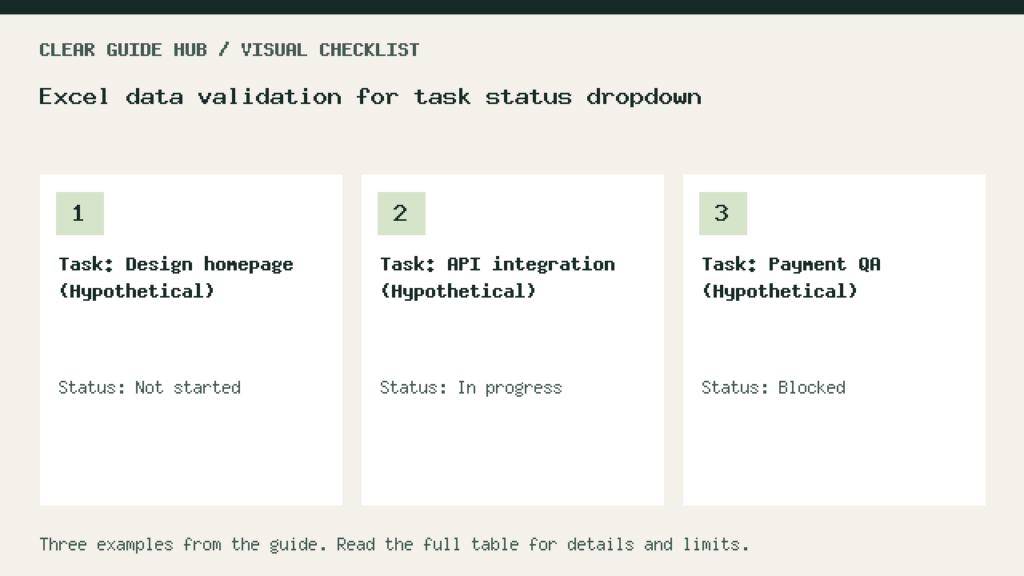
Create a sheet named Tasks. Put these headings in row 1 and the four fictional tasks in rows 2–5. The Status column is B; select B2:B50 when applying the rule so there is room for more tasks. Do not include the heading in B1.
| Task (column A) | Status (column B) | Notes (column C) |
|---|---|---|
| Prepare a team FAQ | Not started | Fictional task; replace with your own |
| Log a sample receipt | In progress | Fictional task; replace with your own |
| Review file access | Blocked | Fictional task; replace with your own |
| Write release notes | Complete | Fictional task; replace with your own |
2. Create a named range for the allowed statuses
- Add a sheet named
StatusList. Type the headingStatusOptionsin A1, thenNot started,In progress,BlockedandCompletein A2–A5. - Select
StatusList!A2:A5, excluding the heading. On Formulas → Define Name, name itStatusOptions, set Scope to Workbook, and check that Refers to is=StatusList!$A$2:$A$5. - Confirm the name. To check or extend it later, open Formulas → Name Manager. Microsoft documents names and workbook scope and editing a named range.
The named range avoids an ambiguous cross-sheet selection when setting the rule. It is fixed: adding a fifth status in A6 does not extend this reference. Change the name to =StatusList!$A$2:$A$6 and retest if you deliberately add another status.
3. Configure the Excel task status dropdown
- Return to Tasks and select
B2:B50. Open Data → Data Validation. - On Settings, choose Allow: List and enter
=StatusOptionsin Source. Enable In-cell dropdown; this controls the arrow. - Choose whether empty status cells are acceptable with Ignore blank. On Input Message, optionally explain that the user should select a status.
- On Error Alert, enable the alert after invalid data is entered and choose Stop. For example, use the title “Choose a listed status” and message “Use one of the four statuses.” Save the rule.
The arrow and the error alert are separate settings. Warning or Information can allow the user to keep an invalid typed value. Microsoft’s data validation settings describe these controls.
4. Run checks that can expose a broken rule
| Test | Expected result | If it fails |
|---|---|---|
| Open the dropdown in B2 | Four statuses; no heading or blank list item | Check the named range and exclude A1 |
| Type Complete in B6 | Value accepted | Check that B6 is inside the validated range |
| Type Done in B6 | Stop alert; cancel or replace the value | Enable Error Alert and confirm Stop |
| Inspect B51 | Outside the example range; it may have no dropdown | Extend the validated range before using more rows |
| Paste Done into a test cell in an approved copy | The pasted value may get through without the typed-entry alert | Inspect invalid data separately; do not treat validation as a lock |
Data validation is not an access-control boundary. Copying, filling and some calculated values can bypass entry alerts. Microsoft explains this in More on data validation. In desktop Excel, Data → Data Validation → Circle Invalid Data can highlight cells that fail their rule; the web version may not offer this command. See Microsoft’s invalid-data checks.
Fix the common setup problems
- Data Validation is unavailable: finish editing the cell first. If the sheet is protected or the workbook has sharing restrictions, ask its owner for an approved edit or test copy; do not remove team-file protection as a shortcut.
- The name is not recognized: inspect StatusOptions in Name Manager. Use workbook scope and check its absolute reference. See our Excel formula error checks for names and references.
- The new row has no arrow: B51 is not included in B2:B50. Inspect validation on the new cells rather than assuming it copied automatically.
- The whole list appears as one choice: use the named-range path instead of guessing your local list separator. Keep one status per source cell.
- A displayed status is cut off: widen column B; changing its width does not change the rule.
Use the tracker without confusing labels and calculations
The starter workbook’s Complete count is a formula, while the task statuses are editable labels. For more worksheet calculations, use the Excel formula templates and input/output checks. If you store the tracker in Google Drive, review its sharing access before adding sensitive project details.
Template verification: The exported workbook contains a list rule and Stop alert on B2:B50. Its Complete count changed from 1 to 2 and back to 1 when one sample status changed in the generation engine. These checks and the rendered preview do not establish behavior in your Excel build; run the entry and paste checks above in your own copy.


Pingback: Email vs social: compare campaigns with a clear worksheet