
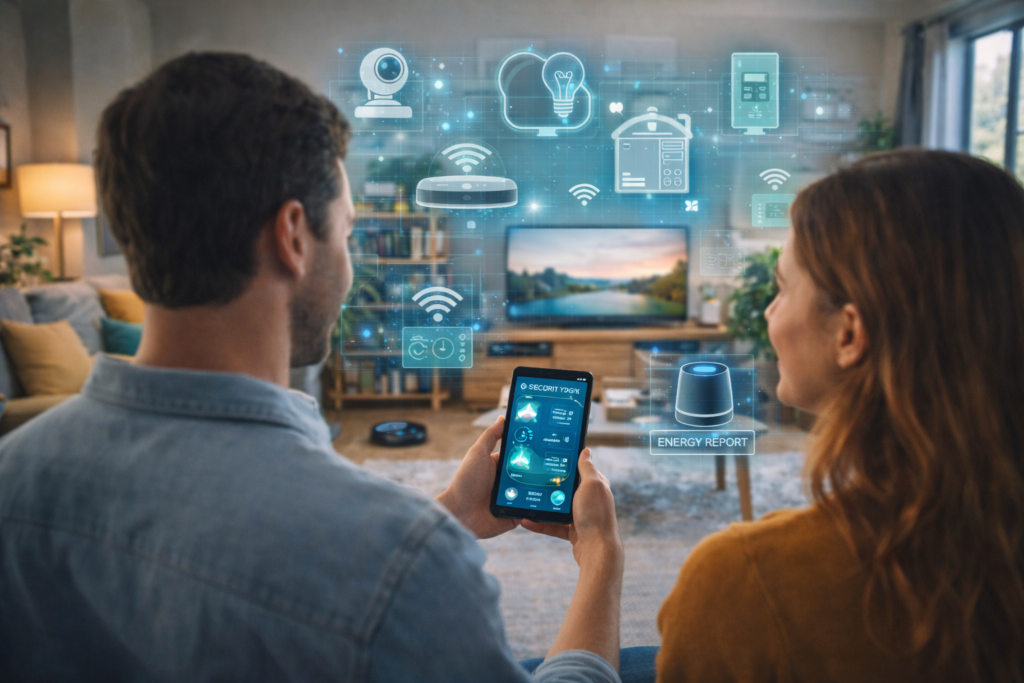
Start a Smart Home setup with the Google Home or Nest app to add compatible devices (Matter or “Works with Google Home”) after checking the exact model and its supported controls. The practical result is a device inventory with a documented setup route and a harmless verification test.
Smart Home setup: prerequisites and scope
Prerequisites: a smartphone with the Google Home app or Nest app installed and the device-specific setup code/QR. Scope: steps to add devices to Google Home/Nest apps and choosing the correct model-specific instructions. This guide covers setup and verification only; device-specific UI or features vary by manufacturer and may require the manufacturer’s app.
Step-by-step setup (exact steps to follow)
- Inventory your devices and check compatibility: look for “Matter-enabled” or “Works with Google Home” on packaging or the manufacturer’s instructions. If a device is listed for Google Home, plan to add it in the Google Home app. (Google support).
- If you have a Nest device that requires the Nest app (examples listed by Google), set it up in the Nest app first, then open Google Home to see if it links automatically. Close both apps and reopen Google Home to refresh the list. (Google support).
- Open Google’s setup directory linked below, select the exact device family and follow its linked instructions. Use the controls shown by that tutorial; the overview itself does not establish one universal menu sequence. For Matter-enabled devices you can set them up from Google Home or the vendor app per the device instructions. (Google support).
- After devices appear in Google Home, confirm the device is listed under a room or under “Local devices.” If device controls aren’t available in Home, use the device manufacturer’s app for full controls (some devices show status only). (Google support).
Expected output and how to check success safely
- Expected output: each compatible device is either present with its supported controls or documented as requiring a different setup route. Nest Protect appears only in the Nest app.
- How to check: open Google Home, find the device entry, toggle the device control in-app — the device should respond. If the device was added via the Nest app, confirm it appears in Google Home after you close both apps and reopen Google Home. (Google support).
Common failures and fixes
- Device not found: check the exact model against its manufacturer’s setup guide. Google’s Wifi troubleshooting page covers Nest Wifi Pro, Nest Wifi and Google Wifi routers or points; it is not a general reset guide for bulbs, plugs or cameras. Scope of Google Wifi troubleshooting. Do not factory-reset a working device or router merely because it is absent from Home: first identify what will be erased and how to recover the setup.
- Device appears but controls aren’t available: use the manufacturer’s app for controls (some third-party devices show status only in Home). (Google support).
- Nest device doesn’t appear in Google Home: set it up first in the Nest app, then re-open Google Home; some Nest devices require Nest app setup before linking. (Google support).
Device checklist: inputs, actions, outcomes
Use this table to decide setup steps, track expected outputs, and spot false positives. Hypothetical inputs are labelled.
| Hypothetical input | Action to take | Expected output / False-positive check |
|---|---|---|
| Hypothetical bulb: Matter-enabled | Check Matter prerequisites and follow its setup tutorial | Listed in room; on/off toggle works |
| Hypothetical plug: Works with Google Home | Follow the official account-linking instructions | Appears with power control; toggle responds |
| Hypothetical camera: third-party | Add in Google Home or use vendor app | Camera listed; live control may require vendor app |
| Nest Wifi Pro, Nest Wifi or Google Wifi not found | Follow the Google Wifi troubleshooting page for your model | Model-specific readiness check; do not generalize to other devices |
| Device previously set up and not found | Check model instructions and preserve current settings | Correct setup route identified; no settings erased |
Hypothetical example (labelled)
Hypothetical example: a Matter-enabled smart bulb (Hypothetical Model A). Assumptions: phone connected to the home Wi‑Fi and Google Home app installed. Steps: open the model’s Matter setup guide, confirm its prerequisites, and follow that guide’s pairing steps. Record whether the bulb appears in the intended room. Verify by toggling on/off in the app.
Next action: open the Google Home app, record the exact model and identify its setup route in Google’s official directory before changing any device settings.


Pingback: Optimizing Smart Home Energy with Automation Strategies
Pingback: DIY home theater budget: A Practical Guide