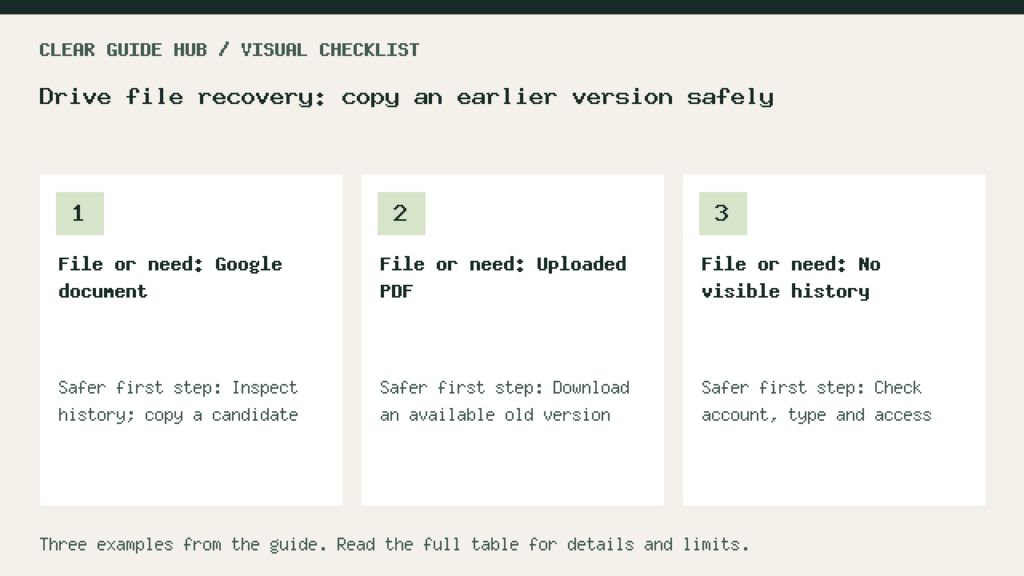
Drive file recovery depends on the file type. A Google document uses its editor’s version history, while an uploaded PDF or other file uses Drive’s file-version controls. When possible, inspect or copy the older material first so you can compare it before replacing current work.
Drive file recovery: identify the right file
This guide covers a file that still exists and has accessible history. It does not promise recovery of permanently deleted material. Use a desktop browser, the correct account, and permission to edit when inspecting a Google document’s history.
Start by writing down the file name, owner and approximate change you need to reverse. Avoid recovering an old copy of the wrong file just because its title looks familiar. Coordinate with collaborators before replacing a shared working document.
For a Google document
- Open the document, spreadsheet or presentation and open its history using the last-edit control.
- Inspect the earlier entries. Expand grouped versions when necessary and compare the relevant passage or cells.
- Where available, use the earlier version’s menu to make a copy. Name it clearly as a recovery candidate and choose its destination. Do not automatically share that candidate with everyone.
- Compare the candidate with the current work before deciding whether to restore. If restoration is appropriate, select the earlier entry and use its restore command.
Google’s version-history instructions cover copying and restoration. They also warn that restoring a spreadsheet clears earlier cell-by-cell edit history; a copy is preferable when that history matters.
Before sending a recovery candidate to collaborators, check who can actually open that copy. The Google Drive sharing audit separates link access, direct invitations, inherited folder access, and published copies.
For a PDF or other uploaded file
In Drive, select the file and use Manage versions. Inspect the available older entries, download a candidate for comparison, and keep an important version when the option is available. Drive’s file-version documentation explains that older versions can expire unless retained. This is a different system from Google Docs history.
A file recovery decision table
Illustrative worksheet: replace these sample entries with your own checks. These are proposed checks, not measured results.
| File or need | Safer first step | Check before replacing |
|---|---|---|
| Google document | Inspect history; copy a candidate | Compare lost text and later edits |
| Uploaded PDF | Download an available old version | Open it and verify its contents |
| No visible history | Check account, type and access | Preserve the remaining good copy |
Compare before replacing
Our sample check assumes a document lost a paragraph. Open the recovery candidate and current file side by side. Confirm the paragraph is present, but also check newer work elsewhere. Restoring a whole old version may discard later edits you still need.
For a spreadsheet, inspect formulas as well as displayed values. For a presentation, inspect slide order and linked material. These comparisons are a proposed checklist, not a guarantee that every file attribute survives a copy.
If history is missing
First check the account and edit permission. Then check whether you opened a native Google file or an uploaded file. Google can group revisions, and a missing version cannot be assumed recoverable. Ask the owner about an existing backup instead of deleting or overwriting the remaining good copy.
Keep the current working file until the candidate passes the relevant checks and collaborators agree on the replacement. Record which version you inspected and why you chose it. That small recovery note helps avoid repeating the same uncertainty later.