If your workspace leaves you sore, distracted, or struggling to concentrate, optimizing your digital workflow ergonomics can help. A well-arranged setup—covering monitor position, tool accessibility, and digital fatigue prevention—supports focus, productivity, and long-term health.
Why Digital Workflow Ergonomics Matter
Poorly designed digital work environments contribute to musculoskeletal strain, repetitive stress injuries, and reduced concentration. By tailoring your digital workspace, you can prevent discomfort and create the conditions for attentive, sustainable work (University of Pittsburgh Ergonomics).
Core Elements of Digital Workflow Ergonomics
Effective ergonomic interventions consider both physical arrangement and digital tool management. Key elements include:
- Monitor placement: Reduces neck and eye strain.
- Input devices and tool accessibility: Minimizes repetitive movements and reaches.
- Lighting and glare management: Prevents eye fatigue.
- Chair and desk adjustment: Supports neutral posture.
- Digital tool arrangement: Decreases cognitive load and distraction.
- Breaks and movement: Reduces digital fatigue.
Step-by-Step Guide: Optimizing Your Digital Workflow Ergonomics
Step 1: Set Monitor Height and Distance
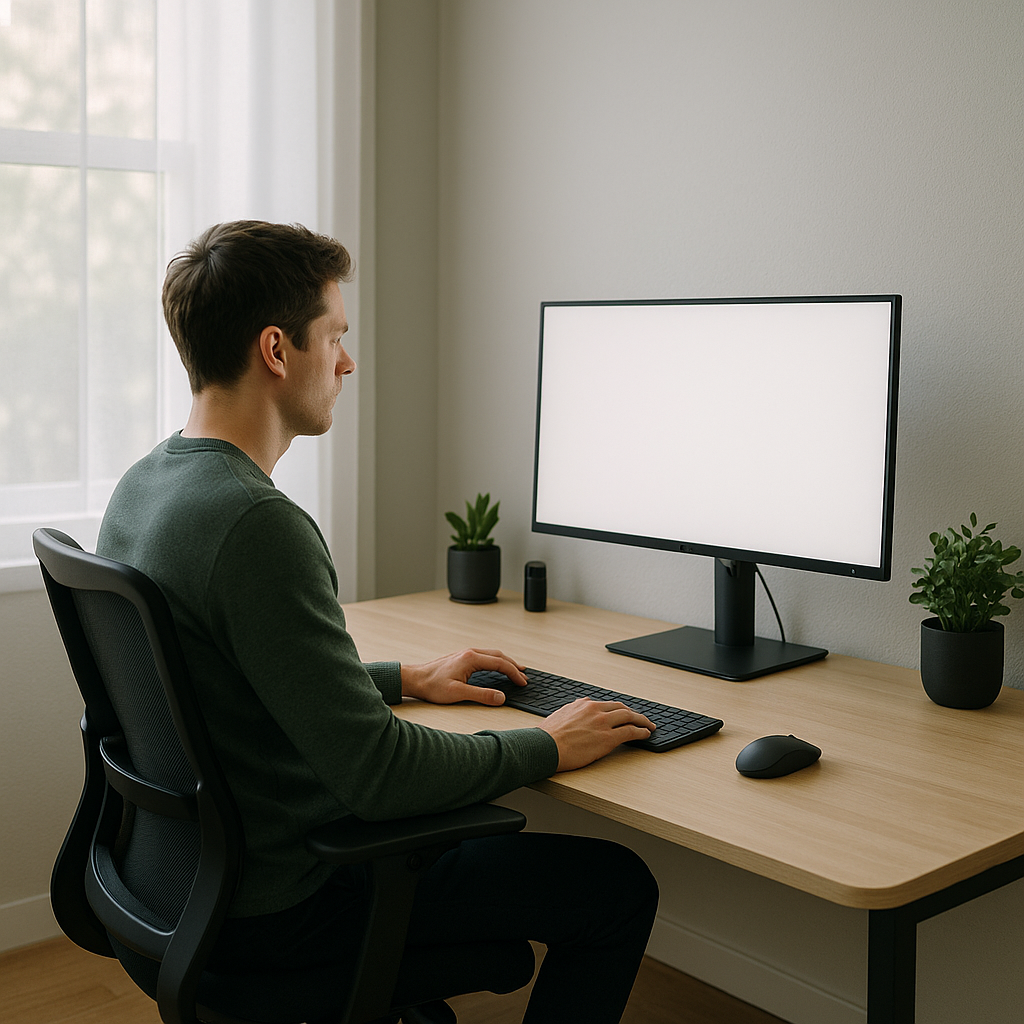
Position your monitor so the top of the screen is at or just below eye level. Place it about an arm’s length away. This keeps your neck neutral and reduces eye strain (Office Ergonomic Guidance, OCWR).
Step 2: Arrange Tools and Input Devices
Keep your keyboard and mouse close, on the same level to avoid reaching. If you use multiple devices, arrange them in order of frequency—most-used items directly in front of you. Ensure your wrists remain straight and elbows are at a 90-degree angle while typing. This minimizes stress on your shoulders and arms (OCWR).
Step 3: Optimize Chair and Desk Positioning
Adjust your chair height so your feet rest flat and thighs are parallel to the floor. Use lumbar support if available. Your desk height should allow relaxed shoulders with forearms level when typing (University of Pittsburgh Ergonomics).
Step 4: Manage Screen Glare and Lighting
Reduce glare by positioning screens perpendicular to windows and using adjustable blinds or anti-glare screens. Use indirect lighting to limit eye strain. Take regular breaks to refocus your eyes, such as the 20-20-20 rule: every 20 minutes, look at something 20 feet away for 20 seconds (OCWR).
Step 5: Design Your Digital Tool Layout
Organize your desktop to keep focus on core applications. Close unnecessary tabs and windows, and use software tools (like virtual desktops or window managers) to group related tasks. Limit notification distractions by adjusting alert settings and only enabling those that require immediate action.
Step 6: Incorporate Breaks and Movement
Schedule periodic breaks for movement and stretching. Micro-breaks (even 30 seconds) offer benefits for circulation and mental recovery. Consider using reminders or wearable device cues for timely interruptions (University of Pittsburgh Ergonomics).
Checklist: Is Your Digital Workflow Ergonomic?
| Item | Check |
|---|---|
| Monitor top at or below eye level? | ☐ |
| Monitor about an arm’s length away? | ☐ |
| Keyboard and mouse within close reach? | ☐ |
| Wrists straight and elbows at 90° angle? | ☐ |
| Feet flat with thighs parallel to floor? | ☐ |
| Screen free from glare? | ☐ |
| Core apps centered, notifications controlled? | ☐ |
| Regular movement breaks scheduled? | ☐ |
Decision Points and Limitations
The right arrangement depends on your hardware, workspace, and job tasks. Some advanced ergonomic features (like adjustable desks or monitor arms) may require additional investment. Not all software tools support deep notification customization. Periodic self-assessment ensures continued ergonomic benefit as tasks and technologies evolve.
Illustrative Example: Applying Ergonomic Adjustments
Assumptions: You use a laptop with an external keyboard and mouse, and spend about 7 hours each day on digital tasks.
- Monitor: Prop the laptop on a stand so the top edge is level with your eyes when seated upright. Place the stand 20 inches from your face.
- Keyboard & Mouse: Position both directly in front of you, right at desk height.
- Chair: Adjust so feet are flat and knees are level with hips.
- Apps: Use focus mode to display only the current document, silence non-essential notifications, and break work into hourly blocks separated by 5-minute movement breaks.
This arrangement reduces slouching, repetitive reaching, and digital distractions, supporting better posture and concentration throughout the workday.
Training and Further Learning
Ergonomic education—whether through traditional online resources or interactive digital training—can improve workplace practices and knowledge retention. Studies indicate that digital human-led ergonomics training is at least as effective as standard formats, though personal habits and reminders are key for real change (Aguilar et al., PubMed).
Next Steps
Use the checklist above to review your current setup. Identify one area to adjust—such as monitor placement or notification management—and test the change for a week. Gradual, mindful improvements can make a significant difference in your focus, comfort, and digital workflow efficiency.