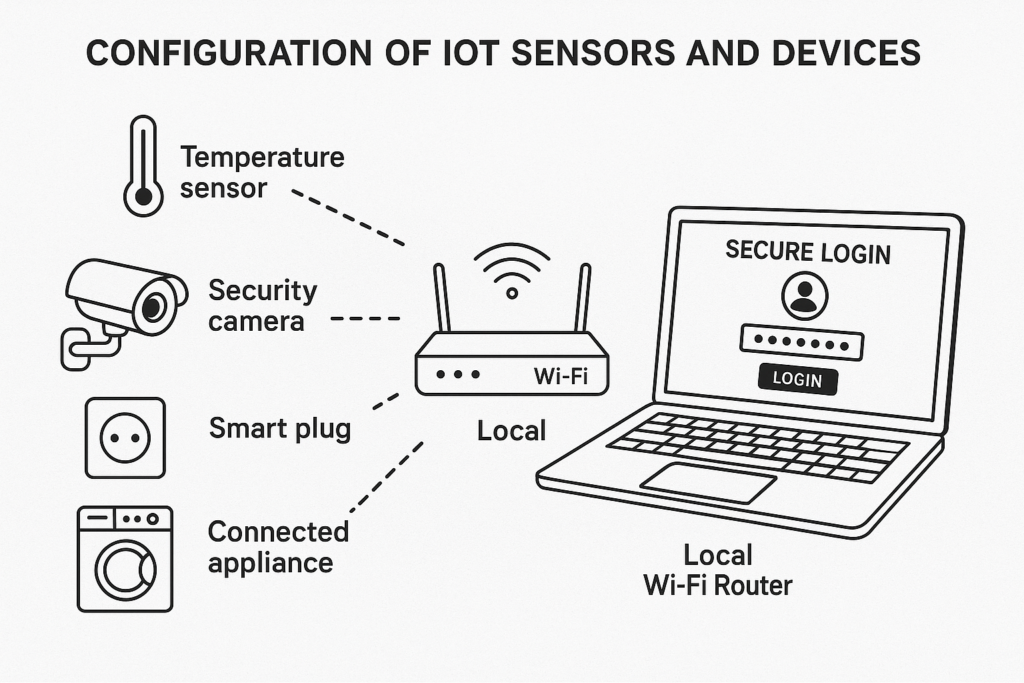
Offline IoT configuration lets you set up and control smart devices without relying on internet access. This approach is valuable for remote sites, unstable networks, or situations where privacy is essential. Setting up IoT devices locally enhances control and protects sensitive data from unnecessary exposure.
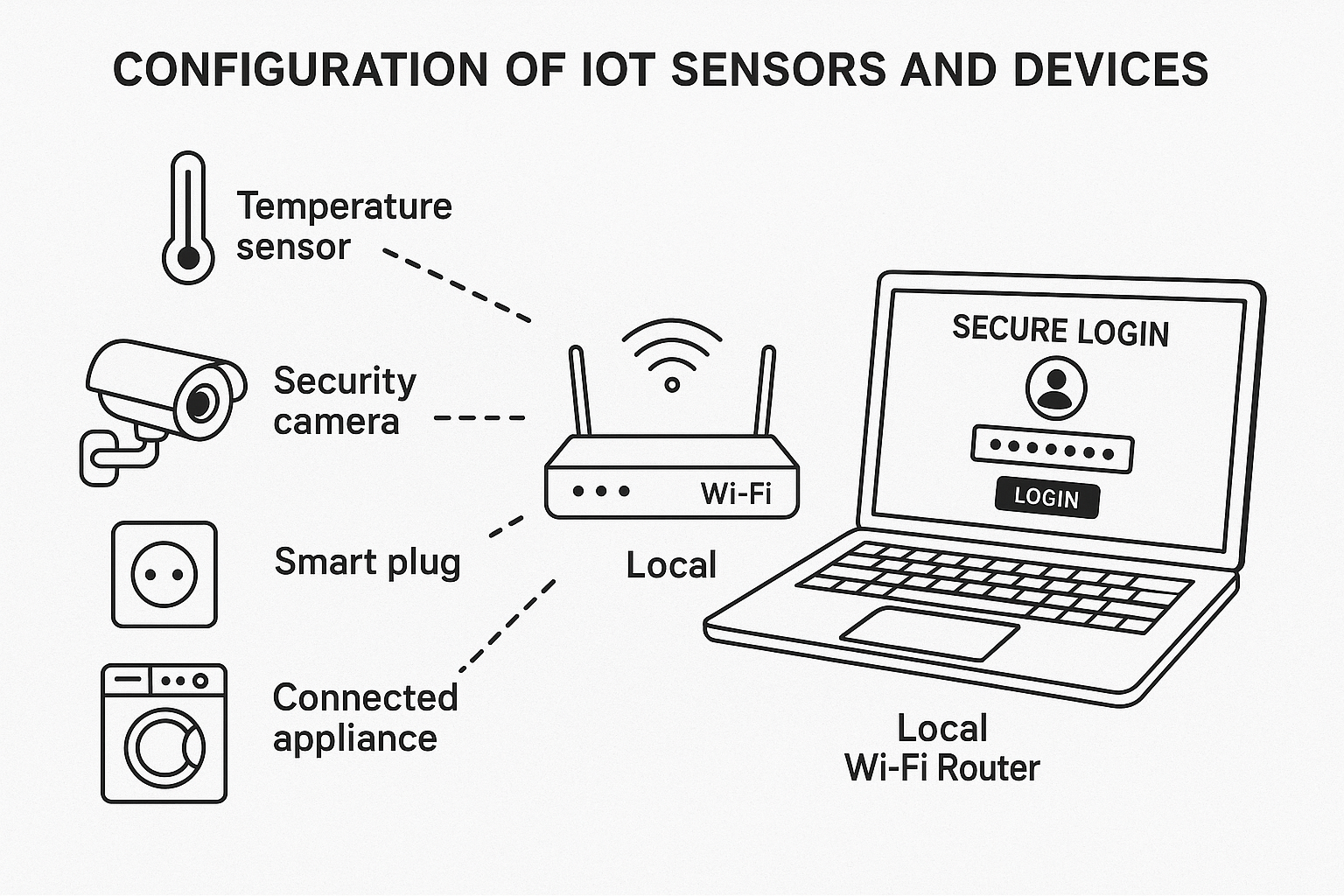
Understanding Offline IoT Configuration
Offline IoT configuration refers to the initialization, networking, and control of devices solely through local networks—such as Wi-Fi, Bluetooth, or wired protocols—without connecting to cloud services or external servers. This method is especially relevant for workplaces, installations in remote areas, or any environment with limited or no internet access.
Benefits and Limitations
- Benefits: Greater privacy, resilience against connectivity failures, and improved security from external threats.
- Limitations: May require advanced configuration skills, and some features (like firmware updates) might be unavailable without internet.
Key Decisions Before You Begin
Before starting, make these critical decisions to tailor the setup process:
- What devices support offline configuration?
- Which local protocols (Wi-Fi, Bluetooth, Zigbee, Ethernet) are supported on your devices?
- How will you manage authentication and local access control?
Some commercial platforms, such as Espressif’s RainMaker, provide specific offline functions and document configuration steps (see Espressif documentation).
Step-by-Step: Setting Up IoT Devices Without Internet
- Assemble Your Devices and Network
Choose devices advertised to support offline setup. Confirm your router or gateway can operate as a local access point without internet uplink, or use a direct device-to-device connection. - Power On and Connect Locally
Boot each IoT device, ensuring they enter pairing mode. Connect your configuration device (usually a phone, tablet, or laptop) to the local network or directly to the device’s Wi-Fi hotspot as documented. - Configure Device Settings
Use the device’s companion app, local web portal, or standard protocols (e.g., MQTT, HTTP, CoAP) to enter configuration details such as local access credentials, device name, and operational parameters (see Wu & Huang, 2020). - Establish Secure Local Authentication
Set up strong local admin passwords and unique device identities. Avoid default credentials—this is essential for offline security (see NIST IoT security guidance). - Test Local Communication
Verify that devices respond to local commands or triggers through the app or local interface. Test peer-to-peer scenarios if relevant (such as sensors triggering alarms). - Document Settings and Backup Credentials
Store configuration details, local passwords, and address mappings securely for recovery or future maintenance.
Checklist: Prerequisites for Offline IoT Setup
| Requirement | Details |
|---|---|
| Device offline support | Documented ability to configure and operate without internet connection |
| Local network | Router, gateway, or direct device access (Wi-Fi, Ethernet, Bluetooth) |
| Companion app/web portal | Must be able to function on local network without cloud login |
| Offline authentication methods | Ability to set/change passwords locally |
| Documentation/manuals | Clear steps for offline or direct setup |
Secure Offline Configuration: Key Tips
- Immediately change any default login credentials after first setup.
- Restrict local network access to trusted devices only.
- Keep a local-only backup of configuration and credentials in a secure location.
- Plan for periodic physical access if firmware updates cannot be delivered wirelessly or via cloud.
- Clearly document physical device locations and IP addresses or unique local identifiers.
Using Local Control Protocols
Many IoT ecosystems adopt open protocols that support offline use. Common examples include:
- MQTT (Message Queuing Telemetry Transport): Efficient messaging for local device-to-device or device-to-gateway communication without cloud services.
- Local HTTP/Web Interface: Many devices host a configuration webpage accessible on the same LAN.
- Bluetooth LE and Zigbee: Direct device control over short distances, useful where Wi-Fi is unavailable.
Espressif RainMaker and similar platforms allow device discovery, control, and automation to run solely on the LAN (Espressif documentation).
Illustrative Example: Setting Up a Sensor Node Offline
Assumptions: The chosen IoT sensor node supports local Wi-Fi configuration via its built-in web server. You have a laptop with Wi-Fi.
- Power up the sensor. The device broadcasts a Wi-Fi network named ‘Sensor-Setup’.
- Connect the laptop’s Wi-Fi to ‘Sensor-Setup’.
- Open a browser and navigate to 192.168.4.1 (default for many IoT devices in setup mode).
- Fill in device name (e.g., ‘GreenhouseTemp1’) and assign a secure local password.
- Set up reporting intervals, threshold alerts, and assign the device to a local group (e.g., ‘Greenhouse’).
- Finish setup and save configuration; the device restarts on the local LAN, ready to report and accept commands, without ever requiring external internet connectivity.
Maintaining Offline Security and Updates
Offline IoT setups carry unique security considerations. Use unique, strong credentials for each device and update firmware when physical access is possible. Consult published IoT cybersecurity guidelines for minimum standards (NIST IoT security guidance).
Conclusion and Next Steps
Offline IoT configuration can increase privacy and resilience, provided devices and networks are chosen carefully. Start by confirming your device supports full operation without a cloud connection, read its offline setup guidance, and plan for secure credential management. For more details, consult manufacturer-specific guides or international IoT security frameworks.