
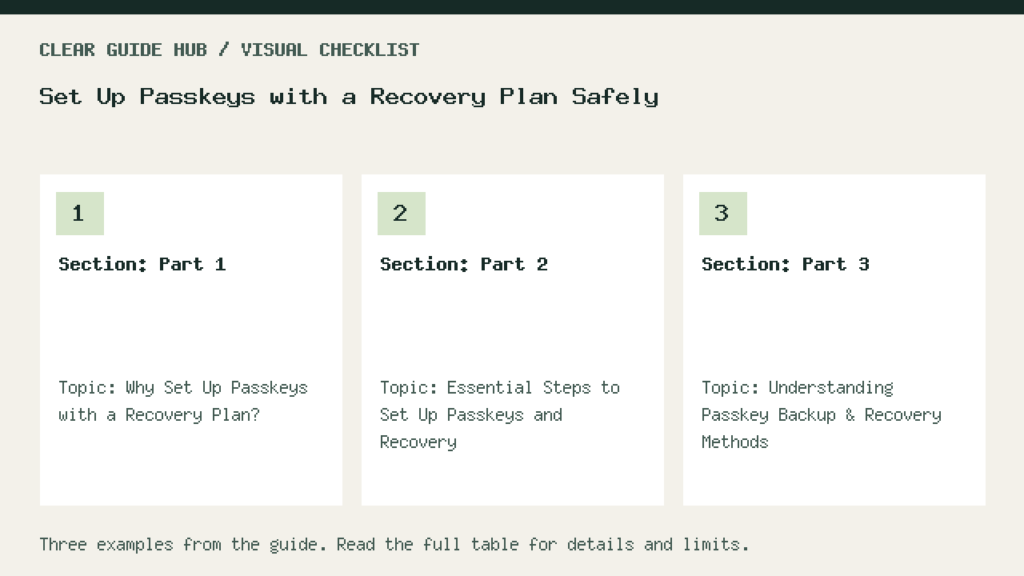
To set up passkeys with a recovery plan before replacing your passwords, choose a trusted authentication provider, enable passkey sync, generate backup options, and confirm you can recover your account if needed. A recovery plan reduces the risk of lockout, but available methods depend on your account and credential manager.
Why Set Up Passkeys with a Recovery Plan?
Passkeys use cryptographic credentials tied to your device and biometrics, offering a secure alternative to traditional passwords. But if you lose access to those credentials, recovery is essential. Reliable recovery prevents lockout and is crucial before removing your passwords, as emphasized by TYPO3 documentation and Atlas Docs.
Essential Steps to Set Up Passkeys and Recovery
- Choose an authentication provider that supports passkeys (such as Microsoft, Google, or Apple).
- Enable passkey sync across your devices using your provider account (e.g., Microsoft Account or Apple ID).
- Enroll passkeys on at least two devices, such as your primary phone and a backup tablet or computer.
- Generate recovery codes or backup methods as instructed—store these securely offline.
- Test recovery by simulating a lost device, ensuring that backup methods give account access.
- Keep existing recovery options until you understand your provider’s rules. Adding a passkey does not necessarily remove your password.
Understanding Passkey Backup & Recovery Methods
Backup and recovery steps vary by provider, but usually include:
- Passkey synchronization: A synced credential manager can make passkeys available across supported devices; device-bound passkeys do not automatically sync (Microsoft Support).
- Recovery codes: Some systems generate one-time recovery codes as backup. Use them only if you lose your devices, and generate new ones after use (TYPO3 documentation).
- Multiple registered devices: Atlas recommends maintaining at least two enrolled devices to reduce lockout risk (Atlas Docs).
- Password fallback or TOTP: Some systems allow a password or Time-Based One-Time Password (TOTP) as a further fallback before removing passwords completely.
Checklist for Setting Up Passkeys and Reliable Recovery
| Action | Purpose | Done? |
|---|---|---|
| Confirm passkey support by provider | Ensure feature availability | |
| Sign in with provider account | Enable sync across devices | |
| Set up passkeys on a primary device | Main authentication method | |
| Add passkey on a second device | Direct backup if one is lost | |
| Generate and securely store recovery codes | Last-resort account recovery | |
| Test passkey recovery process | Verify recovery works in a lockout scenario | |
| Remove passwords only after tests | Finish transition to passwordless login |
Set Up Passkeys Without Removing Your Fallback
Adding a passkey and removing a password are separate changes. For example, Google says creating a passkey leaves existing authentication and recovery factors unchanged. Keep them available. Never delete your only working sign-in method as a test.
Do not remove your password until you have fully tested your recovery plan. If any device is lost or if a recovery code is missing, it may become impossible to regain account access. Both Atlas Docs and TYPO3 documentation stress that recovery should be explicit and auditable, not left to chance.
Illustrative Example: Setting Up Passkeys with Recovery
Assumptions: A user wants to secure an email account with passkeys and ensure they won’t be locked out. Their provider supports passkeys, issues recovery codes, and allows multi-device setup.
- The user logs in to their account on their main phone and enables passkey authentication.
- They add a passkey on their home laptop (secondary device) as prompted.
- The account interface provides recovery codes for emergencies. They print these codes and store them in a home safe.
- To test the backup sign-in method, they keep their main session open and use a separate browser session. They do not delete a passkey or reset a device.
- After the test, the user keeps the existing fallback and records where the passkey is stored. They follow the provider’s instructions before any further sign-in change.
Key Limitations and Security Notes
- Recovery codes are one-time use—generate and secure new ones if you use or lose the originals (TYPO3 documentation).
- Loss of all devices and codes can lead to permanent lockout.
- Storing codes digitally (e.g., email, cloud) is risky; offline storage like a safe is recommended.
- Some organizations require administrator assistance for recovery as an extra safeguard (Atlas Docs).
Next Steps: Moving Toward Passwordless Security
Once you set up passkeys, check a backup sign-in method while your main session remains open. Then keep recovery options current and follow the account provider’s instructions. Periodically review your backup arrangements—replace devices, generate new codes as needed, and update recovery contacts if required.
Sources and further reading
- Recovery — Passkeys Frontend Authentication main documentation
- What are passkeys and why they matter | Microsoft Support
- Passkeys | Atlas Docs


Pingback: How to Check an Email Link Without Visiting It